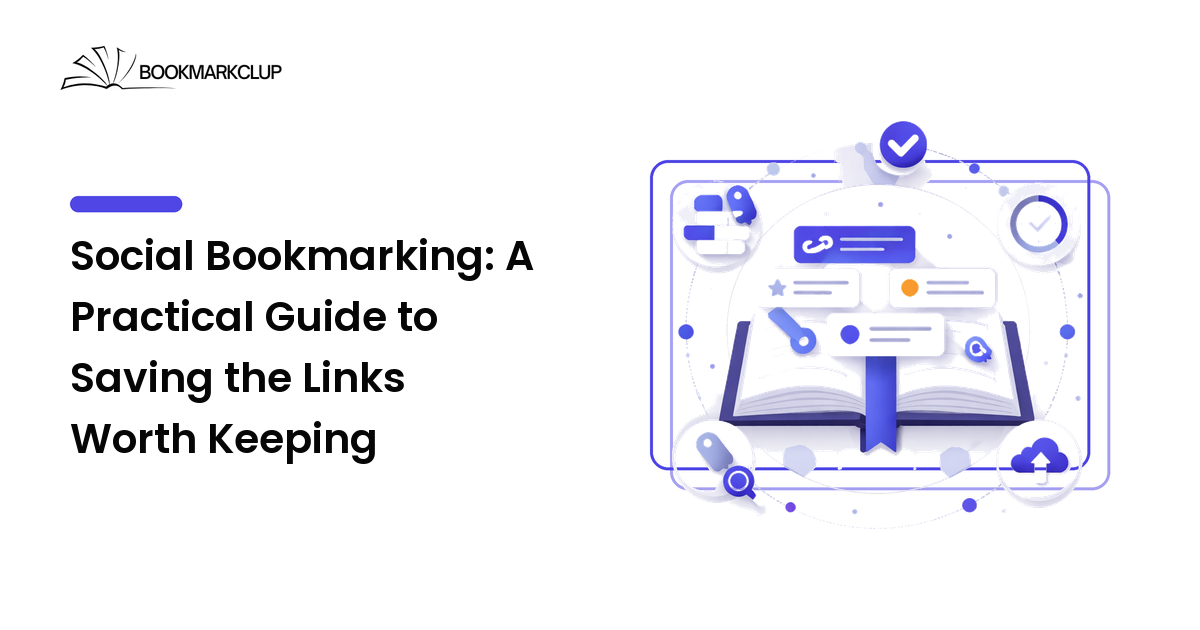
Most of us save links the same way: a quick Ctrl+D, a new browser bookmark dropped into a folder we will never open again. Months later there are hundreds of them, none findable, half of them dead. Social bookmarking is the calmer alternative — a way to save the links worth keeping so you can actually find, revisit, and share them later.
This guide explains what social bookmarking is, how it differs from the bookmarks baked into your browser, and a simple system you can adopt today to stop losing good links.
What social bookmarking actually means
Social bookmarking is the practice of saving links to a dedicated service — instead of your browser — where each saved item can be tagged, described, organized into collections, and optionally shared with other people.
The "social" part is the key difference. A browser bookmark lives in one place on one device and is meaningful only to you. A social bookmark lives in an account you can reach from any device, and it can be public or shared, so a saved link becomes something you can hand to a teammate, a study group, or the wider community.
In practice, a good social bookmark captures three things a browser bookmark usually loses:
- Context — a short note on why you saved it, so future-you remembers.
- Findability — tags and descriptions that make the link searchable.
- Reach — the option to share a collection rather than copy-pasting URLs one by one.
Why browser bookmarks quietly fail
Browser bookmarks are fine for a handful of daily sites. They fall apart at scale, and it is worth being honest about why before you build a better system.
They are trapped on one device
Bookmark a link on your laptop and it is not on your phone unless you have set up browser sync — and even then it is tied to one browser. Switch from Chrome to Firefox, or from a personal to a work machine, and your library is stranded.
Folders force a single home
A link about "remote team productivity" could belong in Work, Productivity, or Management. Folders make you pick one, and then you can never remember which one you picked. Tags solve this, and most browsers barely support them.
There is no memory of why
Six months later, a bookmark titled "Untitled Document - Google Docs" tells you nothing. Without a note or description, a saved link is just a guess.
Dead links pile up silently
Pages move and disappear. Browser bookmarks give you no easy way to spot or prune the ones that have rotted, so the clutter compounds.
A simple system that scales
You do not need a complicated setup. The goal is a system light enough that you will actually keep it. Here is a four-step routine that works whether you save five links a week or fifty.
1. Capture in one place
Pick a single destination for everything you want to keep and send all saves there. Consistency matters more than the tool: a system you trust to hold every link beats three half-used ones. A browser extension or a share button keeps capture to a single click, which is what makes the habit stick.
2. Tag instead of bury
When you save, add two or three tags that describe what the link is about, not where it should "go." A link can be productivity and remote-work and tools at once. Tags let you find it from any of those angles later, which folders never will.
3. Add one line of context
Write a single sentence: what is this, and why did you keep it? "Clear explanation of spaced repetition for studying" is worth a hundred bookmarks titled by their page name. This one habit does more for future findability than any folder structure.
4. Review on a rhythm
Once a month, skim your recent saves for ten minutes. Delete the ones you no longer need, promote the genuinely useful ones into a collection, and you keep the library trustworthy. A small, regular cleanup beats a dreaded once-a-year purge.
When sharing makes the difference
Saving for yourself is half the value; the other half shows up the moment you share. A shared collection of vetted links is far more useful than a forwarded pile of URLs, because it carries your tags and notes with it.
Choose to share when the curation itself is the gift — a reading list for a course, a research folder for a project, a resource pack for new teammates. Keep it private when the notes are personal or the links are sensitive. The point of social bookmarking is that you get to decide, link by link, rather than having a browser decide for you.
A quick way to judge whether to make something public: if a colleague asked "do you have anything good on this?" and you would happily send the collection, it is a candidate for sharing.
Choosing an approach without overthinking it
Tools come and go, so judge them by what they let you do, not by their feature lists. When comparing options, weigh them on a few honest criteria:
- Cross-device access — can you reach your saves from any phone or computer? Choose this first; a library you cannot open everywhere is not a library.
- Tagging and search — can you find a link in seconds, months later? This is the whole point.
- Speed of capture — is saving a one-click action? Friction here quietly kills the habit.
- Sharing controls — can you share a collection and keep the rest private?
- Portability — can you export your data if you ever leave? Pick tools that let your links stay yours.
Rank those by your own situation: a student researching across library computers should weight cross-device access highest, while a team lead curating resources should weight sharing controls. There is no single "best" tool — only the one whose strengths match how you actually save.
Frequently asked questions
Is social bookmarking the same as a read-it-later app?
They overlap but are not identical. Read-it-later apps focus on saving articles to read soon, often offline. Social bookmarking is broader: it is about keeping and organizing any link long-term — tools, references, videos, docs — and optionally sharing it. Many people use bookmarking as the durable home and a read-later queue as a short-term inbox.
Will social bookmarking replace my browser bookmarks?
For most people it replaces the overflowing folders while leaving a few daily-driver shortcuts on the browser bar. Keep a handful of constant sites in the browser; send everything you want to find again to your bookmarking system.
How many tags should I add per link?
Two or three is the sweet spot. One tag is rarely enough to find a link from different angles; more than four becomes noise. Use consistent, lowercase tags so read-later does not compete with Read Later.
What happens to links that break over time?
Pages do disappear, so review periodically and prune dead links. When a resource really matters, save a copy of the key text in your note so the value survives even if the page does not.
Can I share bookmarks with people who do not use the same tool?
Yes — a shared collection is usually just a link anyone can open in a browser, no account required. That is what makes a curated collection easy to hand to a class, a client, or a teammate.
Start keeping what matters
Good links are easy to find and easy to lose. A light social bookmarking habit — capture in one place, tag honestly, add a line of context, and review on a rhythm — turns scattered tabs into a library you trust.
Start saving the links worth keeping with BookmarkClup, and give your best finds a home you can actually return to.