There are dozens of ways to save a link, which is exactly why choosing one feels harder than it should. Every tool advertises a wall of features, and none of them tell you the thing that actually matters: whether you will still be able to find that link in six months. So before you compare feature lists, anchor the decision on one question.
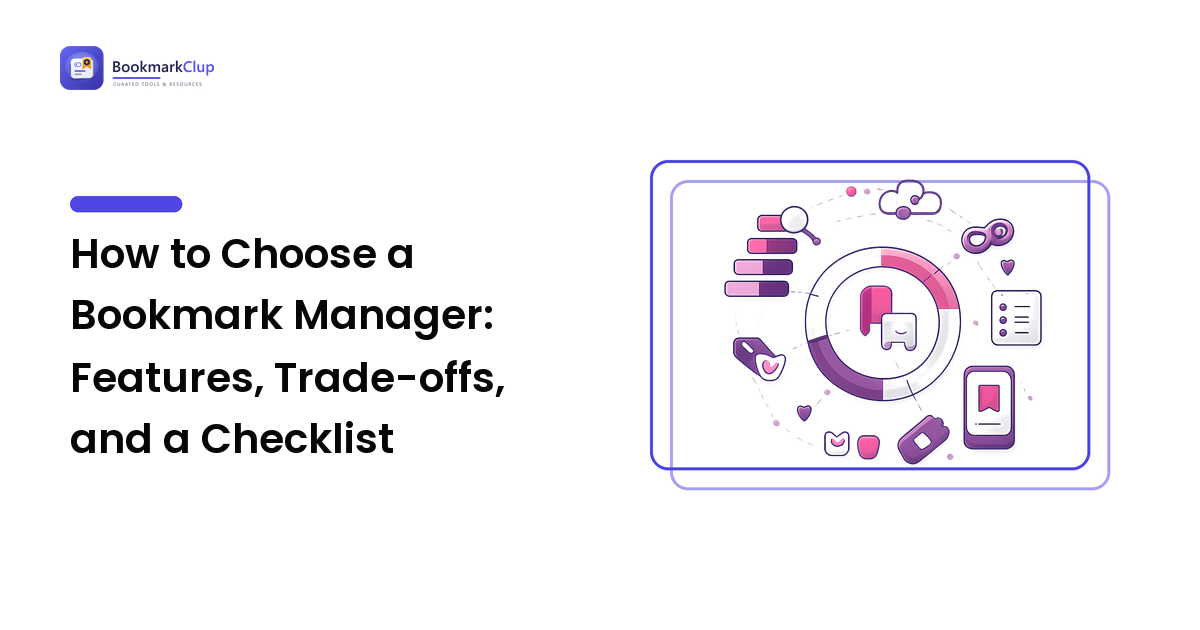
The takeaway up front: judge a bookmark manager by how reliably it lets you save fast and find things again — not by how many features it lists. A tool you can save into with one tap, search in seconds, reach from any device, and leave without losing your data will beat a feature-packed one you quietly stop using. This guide gives you a checklist for exactly that, plus a comparison of the main tool types, honest advice on free vs. paid, the red flags to avoid, and a quick way to test-drive before you commit.
Start with the job, not the feature list
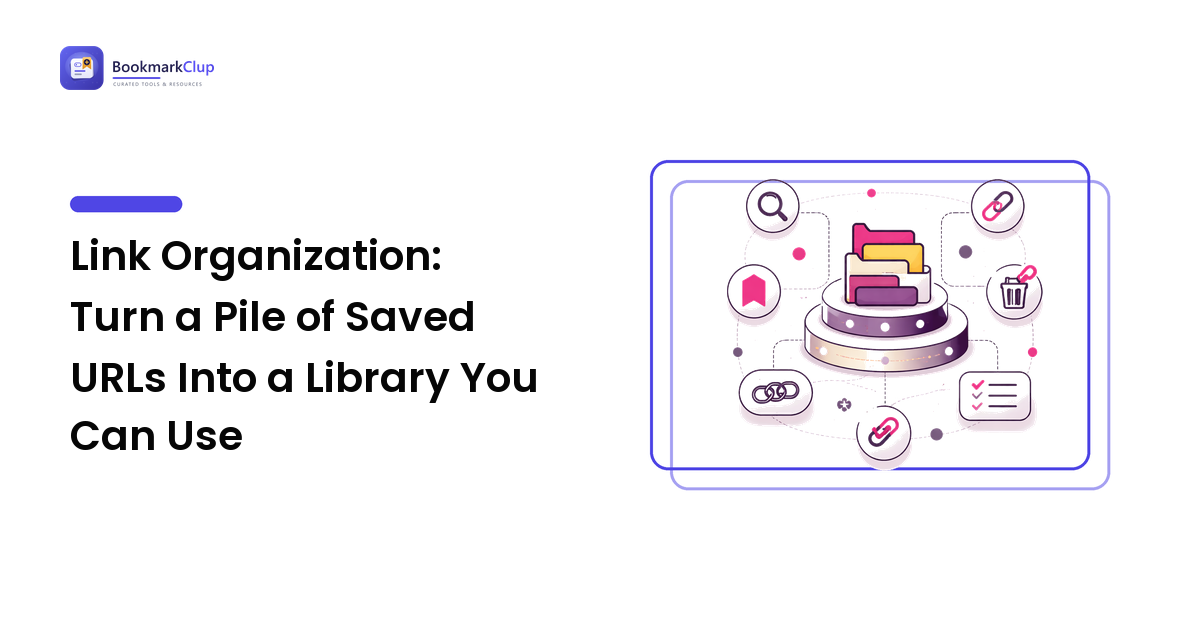
A bookmark manager is a tool for one job: turning a growing pile of "I'll get back to this" links into a library you can trust. Different people need slightly different versions of it — a researcher saving across library computers weights cross-device access highest, a team lead curating resources weights sharing highest, and someone drowning in tabs just needs capture fast enough to keep up.
So do this first: write down the three kinds of thing you save most and the one moment that hurts most today — losing links between devices, never finding them again, or having no way to share them. Those two notes turn a vague "which is best" into a short list of must-haves you can shop against.
The four ways people save links, compared
Most tools fall into four categories. They are listed here roughly in order of how well they hold up as a long-term, searchable library — the weakest for that job first, the strongest last — with the reason for each in the table.
| Tool type | Best for | Strengths | Where it struggles |
|---|---|---|---|
| Browser bookmarks | A handful of daily sites | Built in, instant, free | Trapped in one browser, no real tags or search, dead links pile up unseen |
| Read-it-later apps | Articles you'll read soon | Clean reading, offline access, a tidy queue | Built for consuming now, not long-term reference or sharing |
| Note-taking apps | Links tied to a project or note | Rich context, very flexible | Saving is slower and links get buried inside documents |
| Dedicated bookmark manager | A durable, searchable link library | Fast capture, tags and search, cross-device, shareable collections, export | It's another account to adopt, and quality varies — so it has to be vetted |
A dedicated bookmark manager — the tooling behind the broader practice covered in the social bookmarking guide — is the category built for the "find it again later" job. That is why the rest of this guide focuses on choosing a good one rather than bending a browser or notes app into a role it was not designed for.
The checklist: features that actually matter
When you compare dedicated tools, weigh them on these eight things. Each one earns its place with a reason, so you can drop any that do not apply to you.
- One-tap capture everywhere. A browser extension on the desktop and a share button on mobile, so saving is a single action. Capture friction is the number one reason a library goes stale — if saving takes effort, you stop doing it.
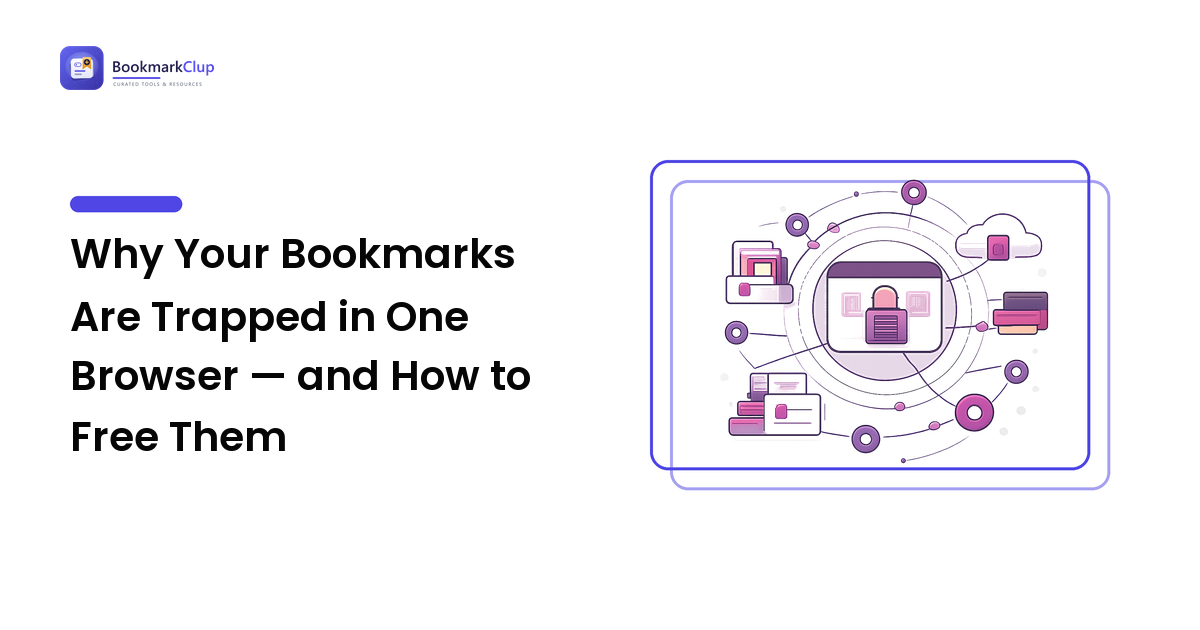
- Cross-device access above any single browser. You save on a laptop and a phone that may not share a browser. A tool in its own account, reachable from any device, means the device in your hand no longer decides what you can see.
- Real search and tagging. Findability is the entire point. Look for full-text search and lowercase, reusable tags — a link can be
productivityandresearchat once — because that is what folders can never do. - Collections you control. The ability to group saves into named sets turns a flat pile into something you can hand to a project, a course, or your future self.
- Sharing controls. Public-or-private, link by link. Curation becomes genuinely useful the moment you can share a vetted collection, while keeping personal or sensitive saves private.
- Import and export. You should be able to bring in your existing browser bookmarks and download your whole library whenever you want. A real export is, paradoxically, the feature that lets you trust the tool.
- A way to stay tidy. Duplicate detection, a nudge for dead links, and an easy review flow keep a growing library trustworthy instead of decaying into clutter.
You will not need all of these equally. Circle the three that map to the pain you wrote down earlier, treat those as pass/fail, and let the rest be tie-breakers.
Free vs. paid: is a bookmark manager worth it?
Most tools have a free tier, and for light savers it is often enough. Paid plans usually unlock some mix of unlimited saves, full-text search, offline copies, and team sharing. The honest way to decide is not "free vs. paid" in the abstract but "what am I paying with?"
A free tool costs you in limits or, sometimes, in how your data is used — worth checking, not assumed. A paid tool costs money but removes a recurring frustration. The rough test: if you save most days and have been burned by losing links, a modest subscription that guarantees fast capture, reliable search, and a clean export pays for itself in the hours you stop hunting. If you save a few links a month, a free tier is almost certainly enough. Either way, start free, feel where the ceiling is, and upgrade only when you hit it for a real reason.
Red flags that should make you walk away
Some warning signs matter more than any feature:
- No export. If you cannot download your data, you do not own your library — you are renting it, and the rent can change.
- Capture that takes more than a click or two. Slow saving quietly kills the habit no matter how good the rest looks.
- Lock-in dressed up as convenience. A tool tied to one browser or ecosystem recreates the exact problem you are trying to escape.
- Search that only matches titles. If you cannot find a link by a word you remember from inside the page or your own note, findability is an illusion.
- Grand promises over substance. Marketing heavy on hype and light on real capture, search, and export is a tell — trust what you can test.
How to test-drive one in 15 minutes
You do not have to guess. Before you commit, run any candidate through a short, honest trial:
- Save five real links from your desktop and your phone — the messy way you actually save, not a careful demo.
- Tag and add one line of context to each, so you can judge how fast that is in practice.
- Close the app, wait, then find one by searching a word you remember. This is the moment of truth for the whole tool.
- Share one collection and export everything. Confirm the share works without an account hassle and the export is a real, complete file.
- Import your existing bookmarks if you can. Migration friction now tells you how painful switching later would be.
If it passes those five steps comfortably, it will hold up at a thousand links. If it stumbles at ten, it will not.
Frequently asked questions
What's the difference between a bookmark manager and browser bookmarks?
Browser bookmarks live inside one browser on one device, with folders but little real search and no shared home. A dedicated bookmark manager keeps your links in their own account you can reach from any device, with proper tags, full-text search, collections, and sharing. The difference shows up at scale: browser bookmarks are fine for a dozen daily sites but fall apart at a few hundred.
Is a paid bookmark manager worth it?
It depends on how much you save. If you save links most days and rely on finding them later, a modest paid plan that guarantees fast capture, reliable search, and a clean export usually pays for itself in time saved. If you only save occasionally, a free tier is almost always enough — start there and upgrade only when you hit a limit that genuinely bothers you.
What features matter most in a bookmark manager?
Prioritize one-tap capture, cross-device access, and real search and tagging — these three decide whether you will actually keep using it. Sharing controls, import and export, and tidy-up tools like duplicate and dead-link detection are strong tie-breakers. Match the top three to the problem that frustrates you most today.
Can I import my existing browser bookmarks?
Usually yes. Every major browser exports its bookmarks to an HTML file, and most dedicated managers import that file directly. It's also a natural moment to declutter — bring in the keepers and leave the dead weight behind. Confirm the tool supports import before you switch, so a year of saved links comes with you.
Bookmark manager vs. read-it-later app — which do I need?
They solve different problems. A read-it-later app is a short-term queue for articles you mean to read soon, often offline. A bookmark manager is the durable, searchable home for anything you want to keep, find again, and share. Many people use both: a read-later queue as the inbox, a bookmark manager as the library.
Pick the one you'll actually keep using
The best bookmark manager is not the one with the longest feature list — it is the one you will still be saving into a year from now because capture is effortless, search never fails, and your links stay portable. Write down your three must-have features, run two or three candidates through the 15-minute test-drive, and let the results decide.
If you want to see how that checklist feels in practice, BookmarkClup was built around exactly these priorities — one-tap capture, tags and search that scale, cross-device access, shareable collections, and an export that keeps your links yours. Test it against your own must-haves, and keep it only if it earns the spot.